
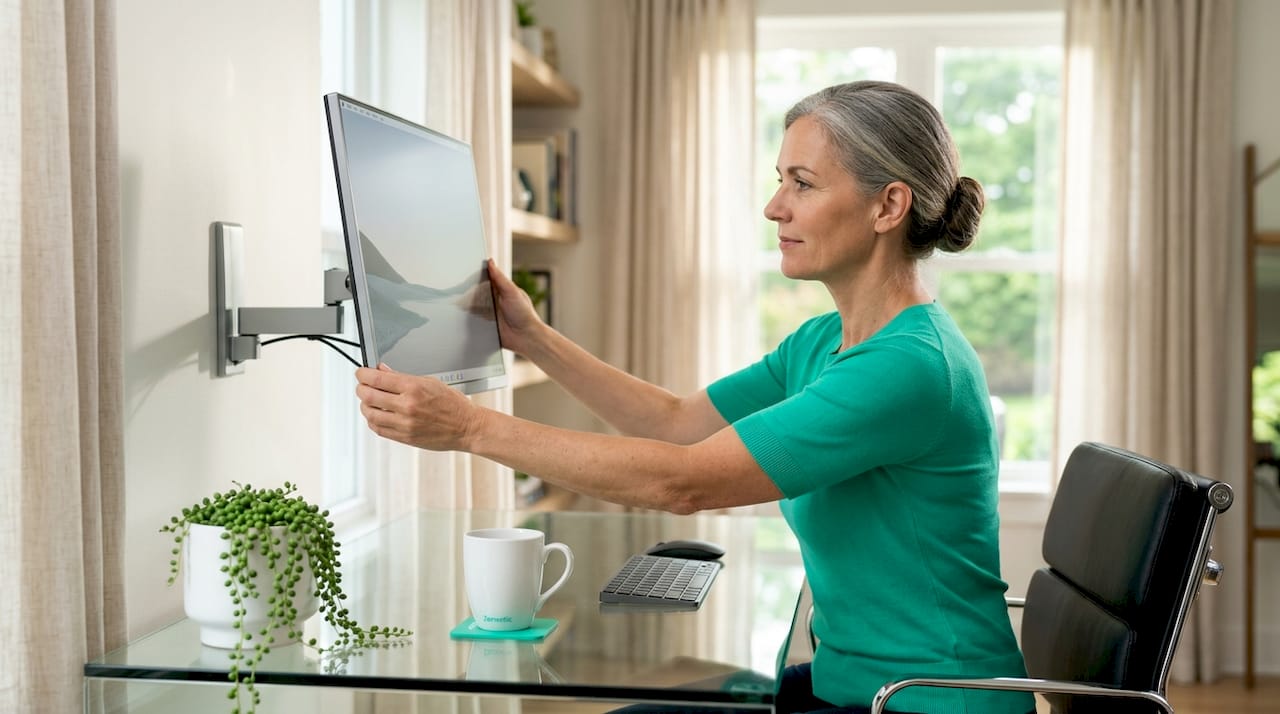
Monitor Positioning for Better Posture: a Practical Guide
Correct monitor positioning for better posture means placing your screen at arm’s length, with the top edge at or slightly below eye level, so your eyes naturally fall on the upper third of the display at a 15 to 20 degree downward angle. This single adjustment, part of what ergonomists call workstation ergonomics, reduces neck strain, prevents the forward head posture that builds up over years of desk work, and makes your entire ergonomic desk setup more effective. Get this right before touching anything else on your desk.
What is the ideal monitor height and why does it matter?
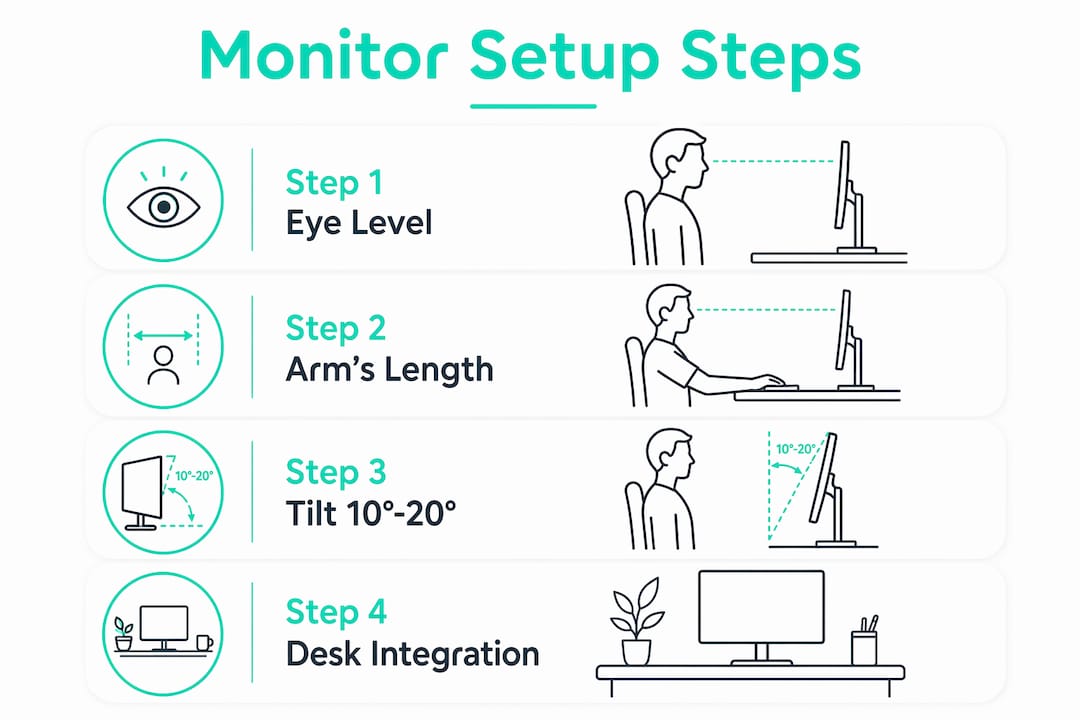
The top edge of your screen should sit at or just below your eye level when you are seated upright. Your natural gaze drops 15 to 20 degrees below horizontal, which means the center of your screen lands in a comfortable zone without forcing your neck to flex forward or extend backward. That slight downward angle is not a preference. It is the position where the muscles supporting your head are under the least load.
Most people set their monitors too low, which pulls the chin toward the chest and rounds the upper back. Others prop screens too high on stacks of books, which forces the neck into extension and tightens the trapezius muscles over time. Even small posture deviations, repeated across an eight-hour workday, accumulate into chronic tension and headaches.
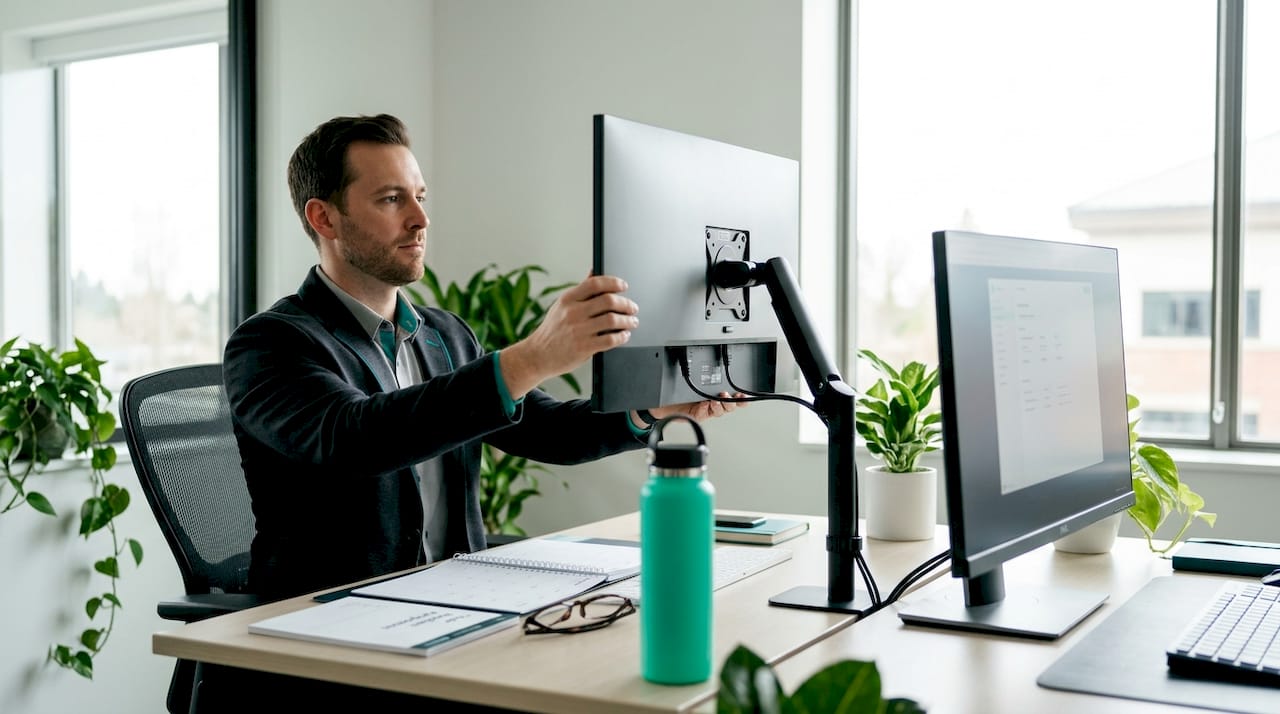
A reliable way to find your correct height is the functional seated gaze test. Close your eyes, relax your neck completely, then open your eyes. Where your gaze lands naturally is where the top third of your screen should sit. Adjust your monitor stand or riser until the screen matches that position. This test beats any formula based on body measurements because it accounts for your actual resting head position.
Pro Tip: If you wear bifocal or progressive lenses, lower your monitor 1 to 2 inches below the standard recommendation. Progressive lens wearers need the screen center closer to eye level, not the top edge, so the reading segment of the lens aligns with the display without forcing a backward head tilt.
Key factors that affect your ideal monitor height:
- Chair seat height and lumbar support position
- Whether you wear corrective lenses, particularly bifocals or progressives
- Screen size, since larger displays extend further above the center point
- Whether you use a laptop, which almost always requires a riser to reach correct height
- Your personal resting gaze angle, which the functional test reveals
How far should your monitor be from your eyes?
The standard starting point for monitor distance is arm’s length, roughly 20 to 26 inches from your eyes depending on screen size and your own visual acuity. The extended arm test is the fastest way to check: sit back in your chair, extend one arm forward, and your fingertips should just graze the screen surface. If your hand passes through the screen or falls well short, adjust accordingly.
Distance matters for posture because it directly controls how much you lean. A screen placed too close pulls you forward as your eyes try to process text that feels overwhelming at that proximity. A screen too far away causes you to crane your neck forward to read smaller text, which is the same forward head posture you are trying to avoid.
Larger monitors, anything above 27 inches, generally benefit from sitting slightly further back, closer to 26 to 30 inches, because the visual field is wide enough that sitting at arm’s length can cause excessive eye movement and subtle head turning. Smaller screens, like 21 to 24 inch displays, work well at the standard 20 to 24 inch range.
Practical distance checks to run right now:
- Sit fully back in your chair before measuring, not perched at the edge
- Increase text size in your operating system display settings rather than moving the screen closer
- If workspace depth forces the screen closer than 20 inches, reduce font size and increase display resolution to compensate
- For dual monitor setups, the primary screen stays directly in front; the secondary angles slightly to the side to reduce neck rotation
What is the best monitor tilt angle to reduce neck pain and eye strain?
A slight backward tilt of 10 to 20 degrees aligns the screen surface with your natural downward gaze and reduces glare from overhead lighting. Most monitor stands allow this adjustment through a simple tilt mechanism at the base. If yours does not, a monitor arm from brands like Ergotron or Humanscale gives you full range of motion.
The tilt angle matters more than most people realize because glare and lighting indirectly affect posture. When glare hits your screen, you unconsciously shift your head to find a clear viewing angle, and that repeated micro-adjustment builds tension in the neck and shoulders over a full workday. A slight backward tilt angles the screen away from ceiling lights and windows, reducing the need for those compensatory head movements.
Avoid tilting the screen too far back, beyond 20 degrees. At that angle, you start looking slightly upward at the screen, which reverses the benefit and puts the neck back into extension. The goal is a screen face that is roughly perpendicular to your line of sight, not parallel to the wall behind it.
Pro Tip: Position your monitor so no window sits directly behind or in front of it. Side-lighting from a window is fine. Direct backlighting creates silhouette glare; direct front-lighting creates reflection glare. Both force postural compensation that no tilt adjustment fully corrects.
Quick tilt setup checklist:
- Start at 0 degrees (vertical) and tilt the top of the screen away from you by about 10 to 15 degrees
- Check for ceiling light reflections on the screen surface after tilting
- Confirm your gaze still lands naturally on the upper third of the display
- If using a monitor arm, lock the tilt once you find the right angle to prevent drift
How to integrate monitor positioning with your ergonomic desk setup for optimal posture
Monitor height and distance mean nothing if your chair and desk are wrong. Chair setup precedes monitor positioning in every credible ergonomic protocol, because an incorrect seat height forces your head and neck into a compensatory position regardless of where the screen sits.
Follow this sequence when building or correcting your ergonomic desk setup:
- Set chair height first. Feet flat on the floor, thighs roughly parallel to the ground, knees at approximately 90 degrees. Use a footrest if your feet do not reach the floor after adjusting for desk height.
- Adjust lumbar support. The lumbar curve of your chair should press gently into the natural inward curve of your lower back. This keeps your spine upright, which in turn keeps your head over your shoulders rather than in front of them.
- Position keyboard and mouse. Elbows at roughly 90 degrees, wrists neutral, forearms parallel to the floor. Keyboard and mouse height directly affects shoulder elevation, which affects neck tension.
- Set monitor height and distance. Only after the above three steps are stable. Use the functional gaze test to confirm height, and the arm’s length test to confirm distance.
- Schedule postural resets. The 20-20-20 rule applies here: every 20 minutes, look at something 20 feet away for 20 seconds, and add a quick shoulder roll and chin tuck to reset muscle tension.
| Setup element | Correct position | Common error |
|---|---|---|
| Chair height | Feet flat, thighs parallel to floor | Too high or low, forcing neck compensation |
| Monitor height | Top edge at or just below eye level | Propped too high or sitting too low on desk |
| Monitor distance | 20 to 26 inches from eyes | Too close, causing forward lean |
| Monitor tilt | 10 to 20 degrees backward | Vertical or tilted too far back |
| Keyboard height | Elbows at 90 degrees, wrists neutral | Too high, elevating shoulders and tensing neck |
Laptop users face a specific problem: the screen and keyboard are physically connected, so raising the screen to eye level puts the keyboard too high for neutral wrist posture. Using a laptop riser combined with an external keyboard and mouse is the only solution that resolves both issues simultaneously. Brands like Rain Design and Nexstand make portable risers that work well in both home and office settings.
Pro Tip: People often compensate for a bad chair by incorrectly adjusting monitor height, which creates a new strain pattern rather than solving the original one. Fix the chair first, always.
Common mistakes in monitor positioning and how to fix them
Most workstation discomfort traces back to a small set of recurring errors. Recognizing them is faster than diagnosing symptoms after the fact.
- Monitor too high. Forces the neck into extension, tightening the suboccipital muscles and contributing to tension headaches. Fix: lower the screen until the top edge is at or just below seated eye level.
- Monitor too low. Pulls the chin toward the chest, rounds the upper back, and compresses the cervical spine. Fix: use a monitor riser, arm, or stand to bring the screen up to the correct height.
- Screen too close. Causes forward leaning and eye fatigue. Fix: push the screen back to arm’s length and increase system font size if needed.
- Screen off-center. Placing the monitor to one side forces chronic neck rotation toward the dominant viewing direction, leading to asymmetric shoulder and neck pain. Fix: center the primary monitor directly in front of your nose.
- Ignoring glare. Overhead fluorescent lighting or a window behind the screen creates glare that triggers repeated head repositioning. Fix: apply a matte screen filter, reposition the monitor perpendicular to windows, or adjust tilt to 10 to 15 degrees backward.
- Laptop without a riser. Laptop screens positioned too low force sustained neck flexion. Fix: add a riser and external keyboard immediately. This is non-negotiable for anyone spending more than two hours daily on a laptop.
Key takeaways
Correct monitor positioning for better posture requires setting the screen at arm’s length with the top edge at or just below eye level, a 10 to 20 degree backward tilt, and a chair and keyboard setup that supports neutral spine alignment before any monitor adjustment is made.
| Point | Details |
|---|---|
| Ideal monitor height | Top edge at or just below eye level; use the functional gaze test to confirm. |
| Correct monitor distance | 20 to 26 inches from eyes; fingertips should just touch the screen when arm is extended. |
| Best tilt angle | 10 to 20 degrees backward to align with natural gaze and reduce glare. |
| Chair setup comes first | Fix seat height, lumbar support, and keyboard position before adjusting the monitor. |
| Laptop users need a riser | A riser plus external keyboard and mouse is the only way to resolve the screen-keyboard trade-off. |
What I’ve learned from years of watching people set up their workstations
Most people approach workstation ergonomics backwards. They buy a new chair, spend an hour adjusting the monitor, and then wonder why their neck still aches by 3 p.m. The issue is almost always sequencing. The chair and keyboard position determine the baseline posture your body adopts. The monitor position then either supports or fights that baseline.
What I find consistently true is that the functional gaze test changes everything for people who try it. Measuring monitor height by body dimensions or following a generic “top of screen at eye level” rule produces a starting point, not a final answer. Your actual resting gaze angle is the real reference point, and it varies more between individuals than most ergonomic guides acknowledge.
The other thing I would push back on is the idea that a perfect setup eliminates the need for movement. It does not. A neutral posture held for eight hours still creates muscle fatigue. The 20-minute postural reset is not optional maintenance. It is part of the ergonomic system. Reassess your setup every few months too, especially if your chair, desk, or glasses prescription changes. A setup that worked perfectly six months ago may be quietly causing problems today.
If you wear progressive lenses and have never adjusted your monitor for them, do that today. The difference is significant and most people with progressives have no idea the standard height recommendation does not apply to them.
— Zeeshan
Build a workstation that works as hard as you do

Getting your monitor position right is a strong first step, but a truly comfortable workstation addresses the full picture. Zenvotic’s wellness collection includes products designed to support posture, reduce eye strain, and ease the physical toll of long desk sessions. The Smart Posture Corrector provides real-time vibration alerts when your back or neck drifts out of alignment, making it a practical complement to any ergonomic desk setup. For eye fatigue from extended screen time, the Electric Eye Massager with Heat delivers targeted relief that no monitor tilt adjustment can replicate. All Zenvotic products ship fast and come with a 30-day money-back guarantee.
FAQ
What is the correct monitor height for good posture?
The top edge of your monitor should sit at or just below your eye level when seated upright. Your natural gaze should fall on the upper third of the screen at a 15 to 20 degree downward angle.
How far should my monitor be from my face?
The recommended distance is 20 to 26 inches, roughly arm’s length. Extend your arm and your fingertips should just touch the screen surface. Larger monitors may need to sit slightly further back.
What monitor tilt angle reduces neck pain?
A backward tilt of 10 to 20 degrees aligns the screen with your natural downward gaze and reduces glare from overhead lighting, both of which reduce neck strain over a full workday.
Do I need a riser if I use a laptop?
Yes. Laptop screens are almost always positioned too low for neutral neck posture. A riser combined with an external keyboard and mouse is the only way to correct screen height without forcing your wrists into an awkward position.
Should I adjust my monitor or my chair first?
Always adjust your chair first. Seat height, lumbar support, and keyboard position establish your baseline posture. Monitor height and distance adjustments only work correctly once the chair and desk setup are right.